API Token
You need an API token to access Enapter EMS via HTTP API or enapter-cli.
Get Token
- Enapter Cloud
- Enapter Gateway
You must have the Enapter Cloud account.
- Go to Enapter Cloud.
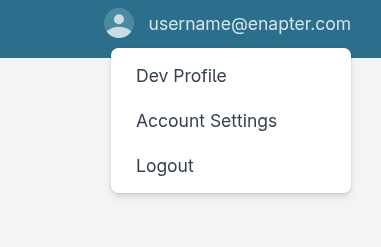
- Click on Account Settings in the upper right corner.
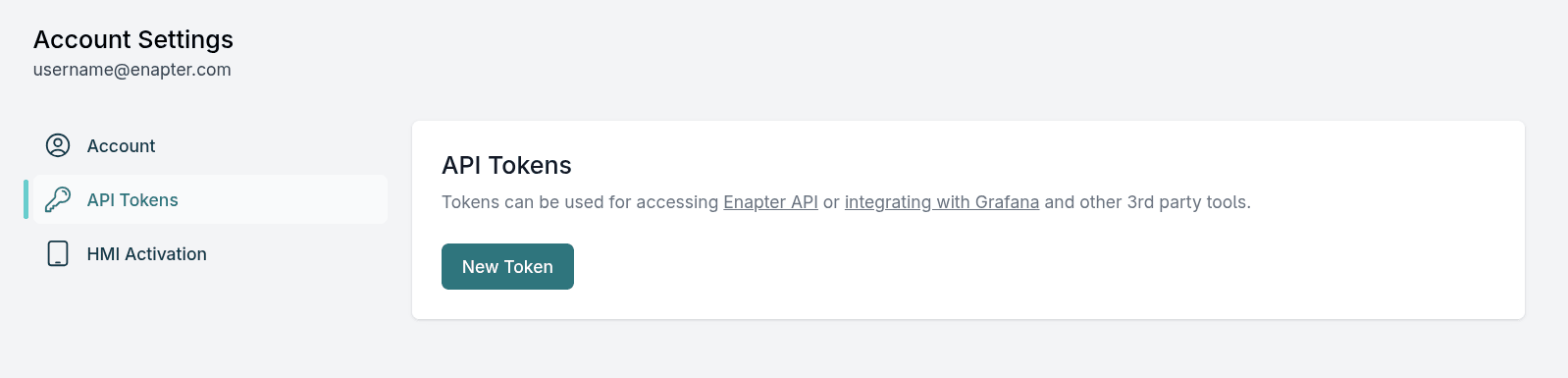
- In API Tokens click on New Token
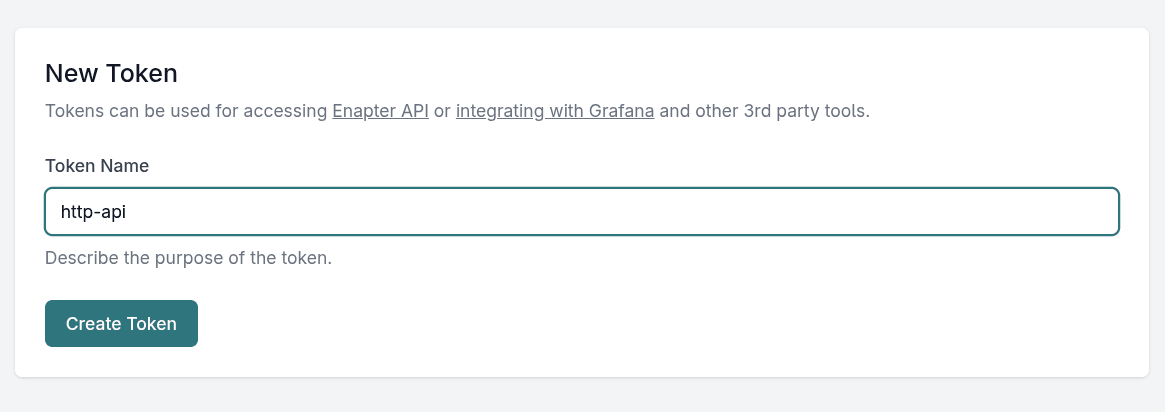
- Type in an informative token name and click Create Token
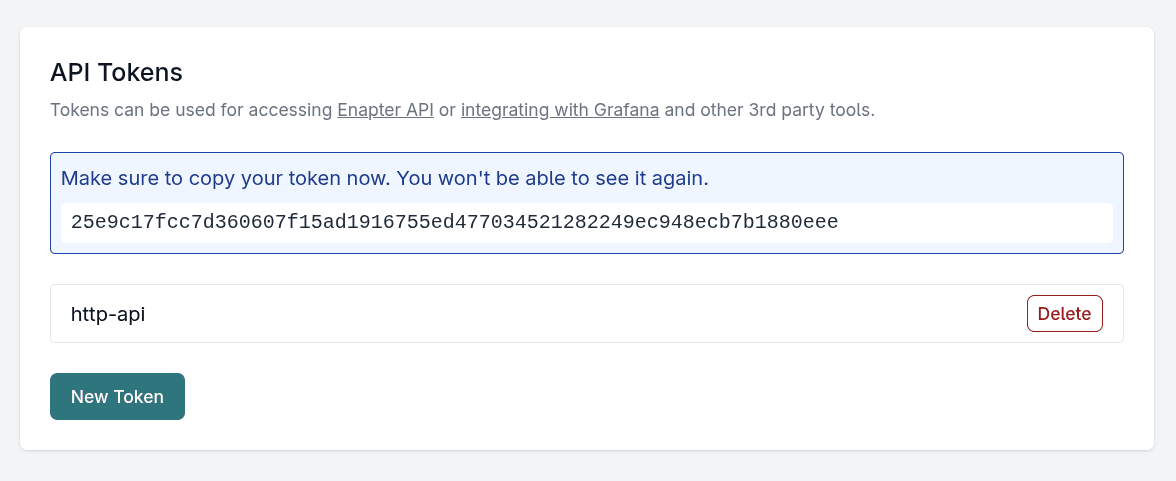
- Copy your token and save it somewhere (e.g. your password manager) to use it with API calls.
- Set your Gateway up.
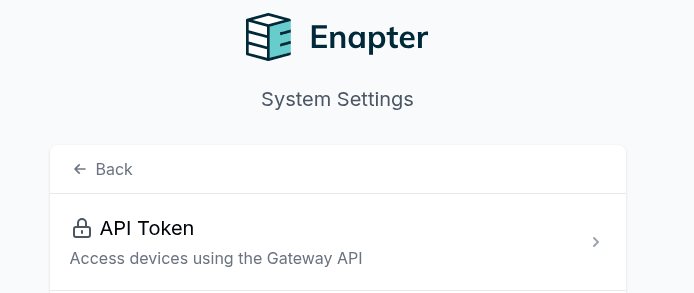
- Go to System Settings -> API Token.
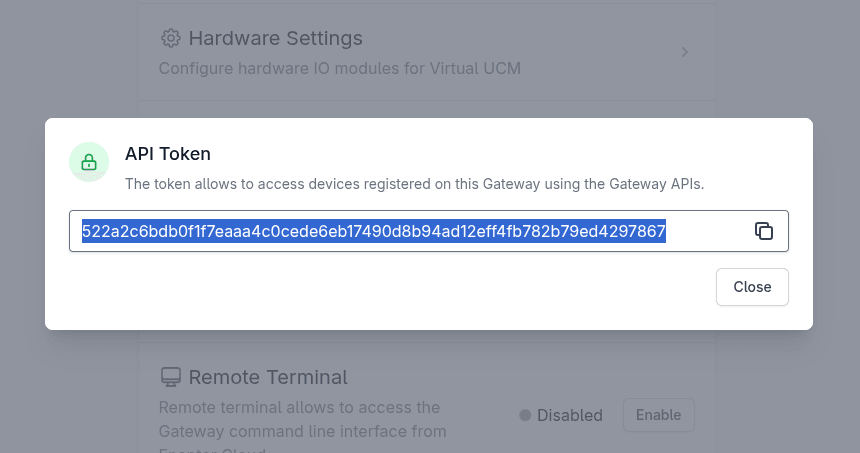
- Copy your token and save it somewhere (e.g. your password manager) to use it with API calls.
Usage
HTTP API
- Enapter Cloud
- Enapter Gateway
$ curl http://api.enapter.com/v3/sites/3a250bee-fddd-4f57-bbe2-841a0083cef7 \
  -H 'X-Enapter-Auth-Token: 05f6a83b9ec8aa3234535f1cc7ffc37f45c235a42fedcbbcb2734b22ff1e39cds'
Use your Gateway IP address as a server base address and /api as a URL subdirectory. For example, if 192.168.10.22 is Gateway IPv4 address, all API URLs should start with http://192.168.10.22/api.
If mDNS resolution is functioning properly, the address http://enapter-gateway.local/api will also work.
$ curl http://192.168.87.200/api/v3/sites/fecbbba0-79f2-4e9e-a6f0-69a310ab110b \
  -H 'X-Enapter-Auth-Token: 25e9c17fcc7d360607f15ad1916755ed477034521282249ec948ecb7b1880eee'
Enapter CLI
- Enapter Cloud
- Enapter Gateway
Add connection
namestringrequired#Enapter EMS connection name.
tokenstringrequired#Enapter EMS API token.
urlstring#API base URL. Default is
https://api.enapter.com.
site-idstring#Specify site for connection.
enapter3 connection add \
--name cloud-ems \
--token 05f6a83b9ec8aa3234535f1cc7ffc37f45c235a42fedcbbcb2734b22ff1e39cd \
--site-id 3a250bee-fddd-4f57-bbe2-841a0083cef7
Set as default
enapter3 connection set-default --name cloud-ems
List connections
enapter3 connection list
Default connection marked with an asterisk *:
NAME          TYPE      URL                         ALLOW INSECURE   SITE ID
cloud-ems *   cloud     https://api.enapter.com     no               3a250bee-fddd-4f57-bbe2-841a0083cef7
gateway-ems   gateway   http://192.168.87.200/api   no               cee4c6ea-1c1d-4561-9224-25d4e01d86f3
Verify connection
Now you can try a command to check the connection. For example, try listing devices on the site:
enapter3 devices list
Add connection
namestringrequired#Enapter EMS connection name.
tokenstringrequired#Enapter EMS API token.
urlstring#API base URL. Default is
https://api.enapter.com.
gatewayboolean#Flag marks the connection to the Enapter Gateway.
enapter3 connection add \
--name gateway-ems \
--gateway \
--url "http://192.168.87.200/api" \
--token 25e9c17fcc7d360607f15ad1916755ed477034521282249ec948ecb7b1880eee
Set as default
enapter3 connection set-default --name gateway-ems
List connections
enapter3 connection list
Default connection marked with an asterisk *:
NAME           TYPE      URL                         ALLOW INSECURE   SITE ID
cloud-ems      cloud     https://api.enapter.com     no               3a250bee-fddd-4f57-bbe2-841a0083cef7
gateway-ems *  gateway   http://192.168.87.200/api   no               cee4c6ea-1c1d-4561-9224-25d4e01d86f3
Verify connection
Now you can try a command to check the connection. For example, try listing devices on the site:
enapter3 devices list